How to Use AI Photo and PDF Tools in Low-Bandwidth or Restricted Networks
A practical guide to using local-first browser tools when cloud editors are slow, blocked, filtered, or too upload-heavy.
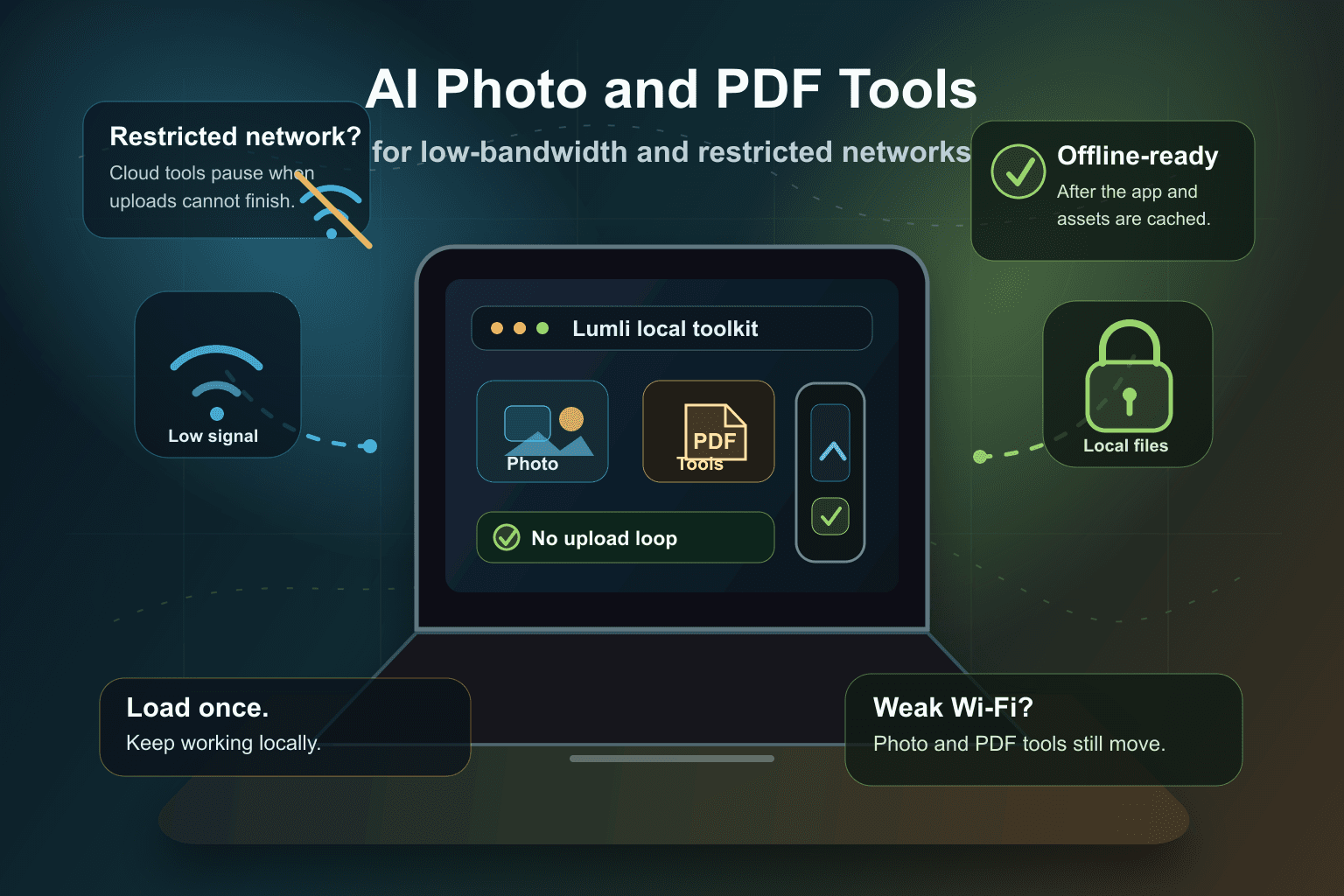
A fast creative tool can feel very slow when the network is the bottleneck.
Maybe you are working from a shared hotspot. Maybe the connection drops every few minutes. Maybe your school, company, hotel, country, or travel network blocks parts of the modern cloud stack. Maybe the editor loads, but every upload crawls and every download feels like a negotiation.
For AI photo edits and PDF work, that is more than annoying. It can decide whether you finish the task at all.
Low bandwidth turns every upload into a tax on your workflow.
Why cloud editors struggle on weak networks
Cloud-first tools can be powerful. Platforms like Canva, Adobe Firefly, and other online creative suites are useful for collaboration, templates, account storage, team assets, and workflows that need remote infrastructure.
But those advantages usually assume a stable connection. The normal pattern is simple: sign in, upload the original file, wait for remote processing, preview the result, sync the project, then download the export.
On a strong connection, that can feel smooth. On a weak or restricted connection, every step becomes fragile. A large photo may fail halfway through upload. A scanned PDF may take too long to send. A network filter may interrupt one of the services the editor depends on. A mobile hotspot may decide it has had enough.
Restricted networks add another layer
The problem is not always raw speed. Some networks are filtered, heavily proxied, rate-limited, or inconsistent. Some users are in regions where certain services are hard to reach. Some offices and schools block file upload tools by policy.
That means a cloud editor can break even when the device itself is perfectly capable of doing the job. The laptop or phone has the power. The browser is open. The file is on the device. But the workflow is waiting for a server it may not reliably reach.
The better default: load once, work locally
Local-first browser tools change the shape of the workflow. Instead of sending the source file to a remote editor for every task, the app loads the code and supported assets into the browser, then processes the file on your device.
That does not mean the first visit needs no internet. It does not mean every advanced AI task works offline on every device. Browser storage can be cleared, and very large assets may still need to load before they are available.
But for supported photo and PDF actions, the important difference is clear: once the tool is loaded and cached, the actual file work can happen locally with far fewer network round trips.
- No repeated upload of the original file just to run a simple edit.
- No waiting for a remote processing queue for local tasks.
- Less dependence on cloud services during the editing step.
- Better resilience if the connection drops after the tool has loaded.
- A smoother workflow for travel, campus, office, and low-bandwidth environments.
A practical low-bandwidth workflow
If you know your connection may be unreliable, treat Lumli like a tool you prepare before you need it.
- Open Lumli when you have a connection so the app can load.
- Keep the tab or installed app available while you work.
- Use local tools for common jobs like background removal, resizing, compression, PDF compression, merging, splitting, and conversion.
- Save finished files directly to your device.
- Share, sync, or upload the final result later when the network improves.
This is especially useful for students on weak campus Wi-Fi, creators traveling with only a hotspot, designers in restricted work networks, and anyone who has watched a large upload fail at 97 percent.
Privacy comes along for the ride
The low-bandwidth benefit is not only speed. Local processing also reduces how often original files need to leave your device.
That matters when the file is a private photo, a client asset, a scanned document, a contract, an ID, lecture notes, or anything you would rather not bounce through a random server just to make it smaller or cleaner.
Offline-ready is a better design habit
The web should not assume perfect internet. People work from trains, dorm rooms, small towns, airports, hotels, shared networks, filtered offices, and countries where access is uneven.
Lumli is built around that reality. Load the app, keep common tools close to the browser, and avoid making every edit depend on an upload/download loop.
Cloud tools still make sense for collaboration and shared projects. But when the job is local, the file is local, and the connection is weak, the best editor is often the one that does not need to keep asking the network for permission.
Need tools that keep working on weak internet?
Open Lumli once and use supported local photo and PDF tools in your browser with fewer uploads, fewer downloads, and less dependence on cloud processing.
Try LumliKeep reading
Related articles
The Death of the Cloud Server: Why the Future of Software is Client-Side AI
As NPUs and browser runtimes get stronger, everyday software no longer needs to send every file to a cloud server.
Read articleWhat Happens on Your Device, Stays on Your Device: Bringing Apple's Privacy Standard to Web Tools
Apple made on-device privacy a mainstream expectation. Lumli brings that same local-first idea to browser-based photo and PDF tools.
Read articleThe Loneliest Part of Building Isn't Coding
A quiet note on building Lumli before anyone is watching, and choosing usefulness over constant self-promotion.
Read article