How to Edit Sensitive Documents Privately in Your Browser (No Cloud Upload)
A practical step-by-step guide to working with sensitive PDFs locally in your browser without cloud uploads.
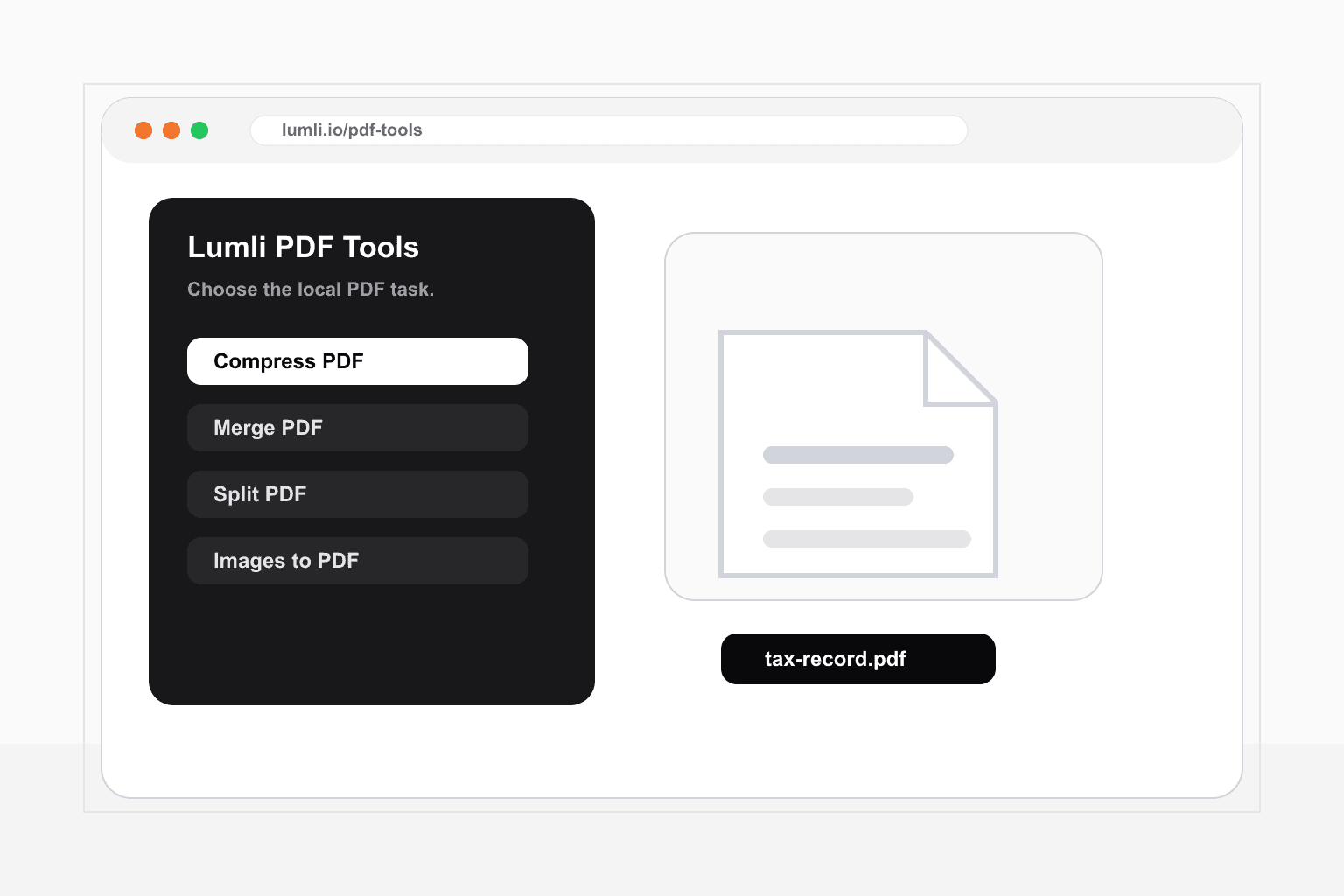
Sensitive documents show up in ordinary PDF tasks all the time. A signed form, a tax record, an invoice, a contract, a passport scan, or a school document may only need a small edit, but the file itself is still private.
The safest PDF workflow is the one that does not start by sending the document away. Lumli PDF Tools is designed for local-first PDF work: you open the tool in your browser, choose the file on your device, process it in the tab, and download the result.
Step 1: Open the PDF workspace
Go to Lumli PDF Tools and choose the PDF action that matches the job. You do not need an account, a cloud drive connection, or a document upload queue before you can start.
If the PDF contains personal or work information, pause before using a generic online editor. The important question is not only whether the editor is convenient. It is whether the document has to leave your device at all.
Step 2: Pick the exact task
Most private PDF work is simple. You usually need to make a scanned file smaller, combine a few PDFs, extract a page range, turn photos into a PDF, or export pages as images.
- Use Compress PDF for scanned documents, receipts, and image-heavy files.
- Use Merge PDF when several documents belong in one handoff file.
- Use Split PDF when you only need to share a few pages.
- Use Images to PDF for phone scans, class notes, or signed photo documents.
- Use PDF to Images when you need page previews or PNG exports.
Step 3: Keep the work local
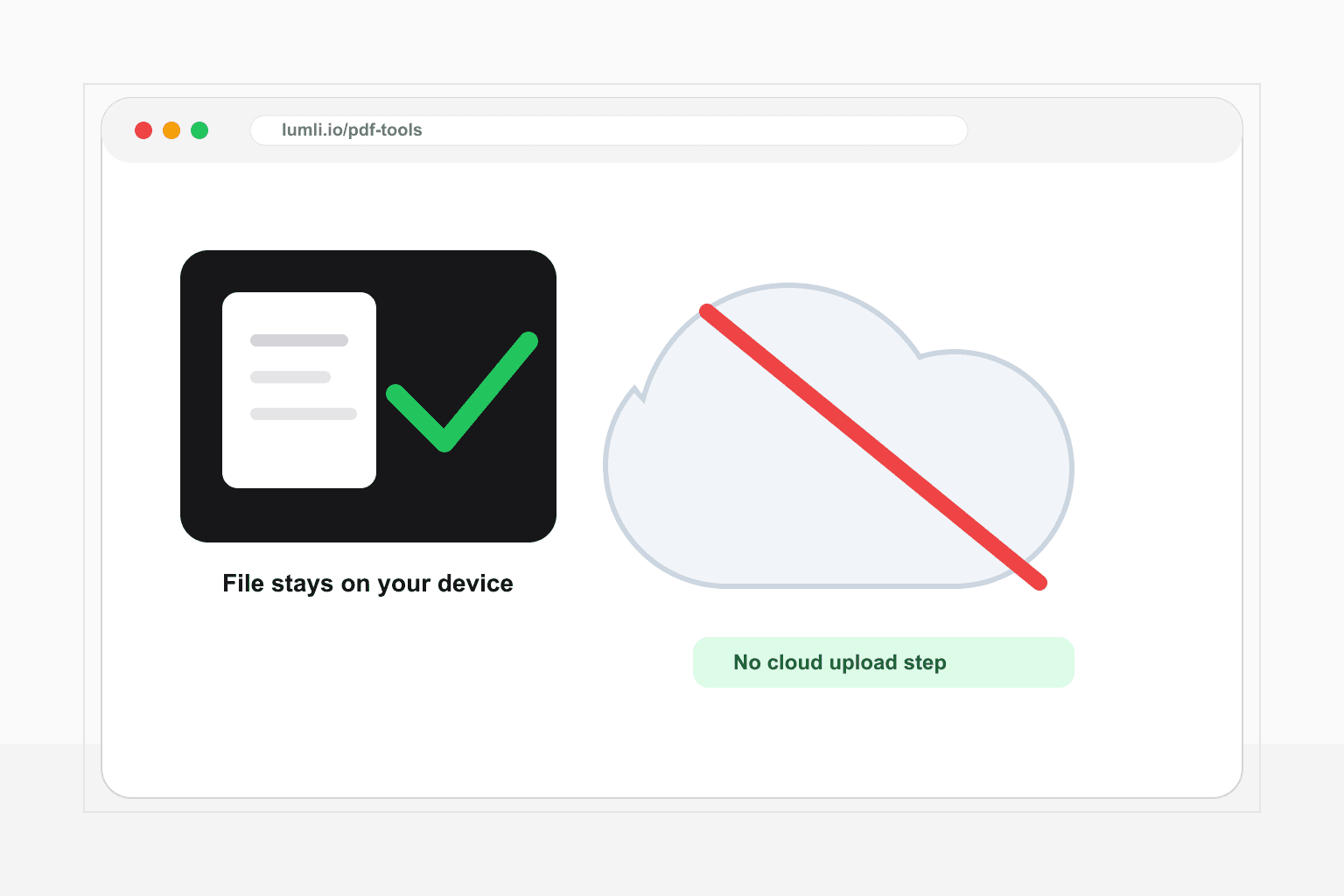
After the PDF tool and its processing code are loaded in the tab, the selected files are handled in the browser. If your connection drops during a local task, the document is still on your device instead of waiting on a remote upload or server job.
That does not replace good document hygiene. You should still use a trusted device, keep private files out of shared folders, and follow your company or school policy. But removing the upload step reduces one of the biggest points of exposure.
Step 4: Download only what you need
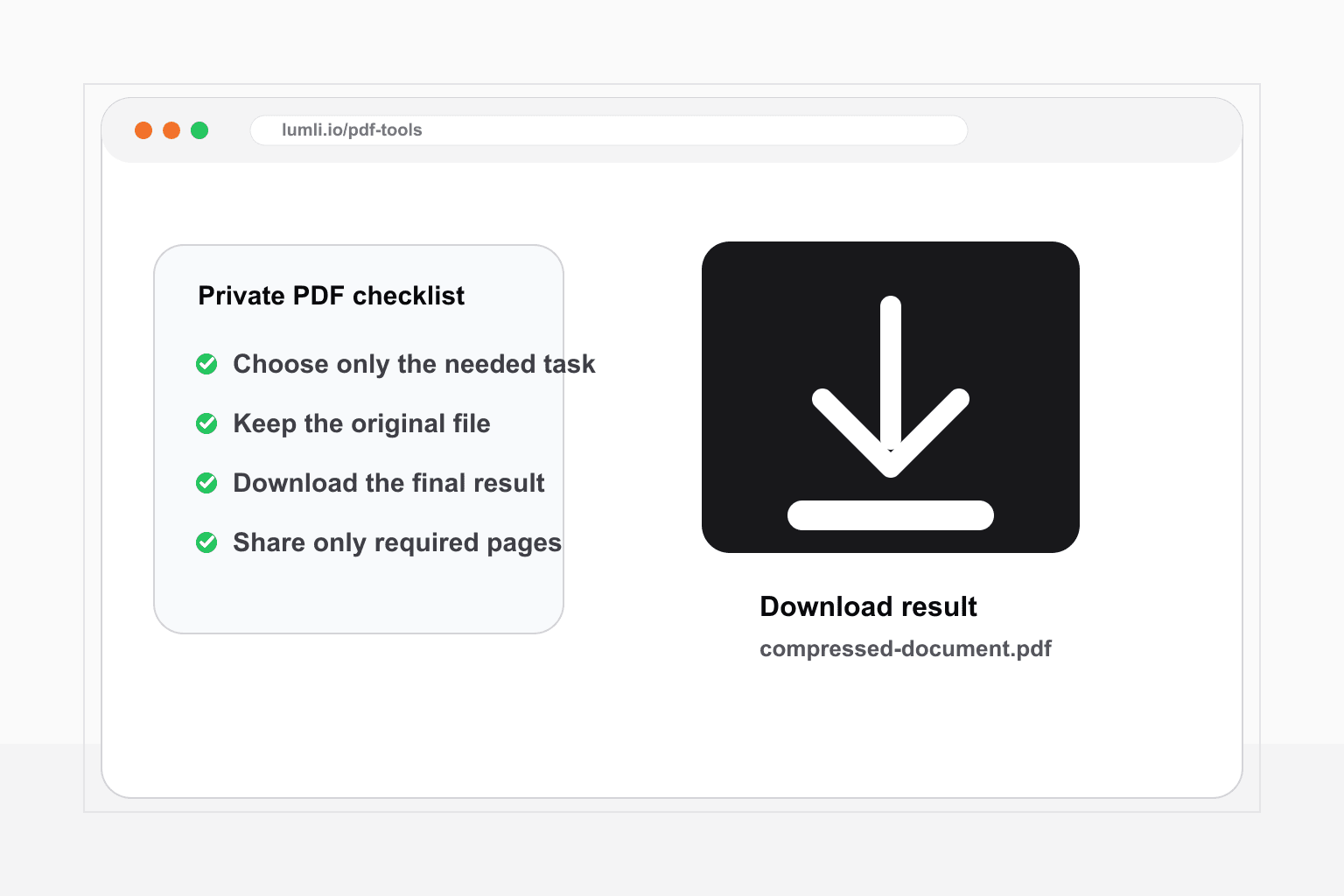
When the action finishes, download the compressed PDF, merged PDF, extracted page range, generated PDF, image export, or ZIP file. Keep the original if you may need selectable text, signatures, or the highest-quality copy later.
The practical rule is simple: choose the smallest workflow that solves the PDF task, keep the source file local, and save only the final result you actually need.
Want to work on PDFs without cloud uploads?
Try Lumli PDF Tools to compress, merge, split, and convert PDFs directly in your browser.
Try Lumli PDF ToolsKeep reading
Related articles
How to Work with PDFs Without Uploading Them
Compress, merge, split, and convert PDFs locally in your browser without sending documents to a server.
Read articleThe Ultimate Student Guide to Managing PDFs Securely and for Free
A student-friendly workflow for compressing, merging, splitting, and converting PDFs without premium limits, sign-ups, or cloud uploads.
Read articleWhy Is PDF Compression Still a Cloud Subscription in 2026?
A slightly annoyed, very practical look at why simple PDF compression still asks for uploads, waiting rooms, and monthly plans.
Read article